Who is ARCHLine.XP for?

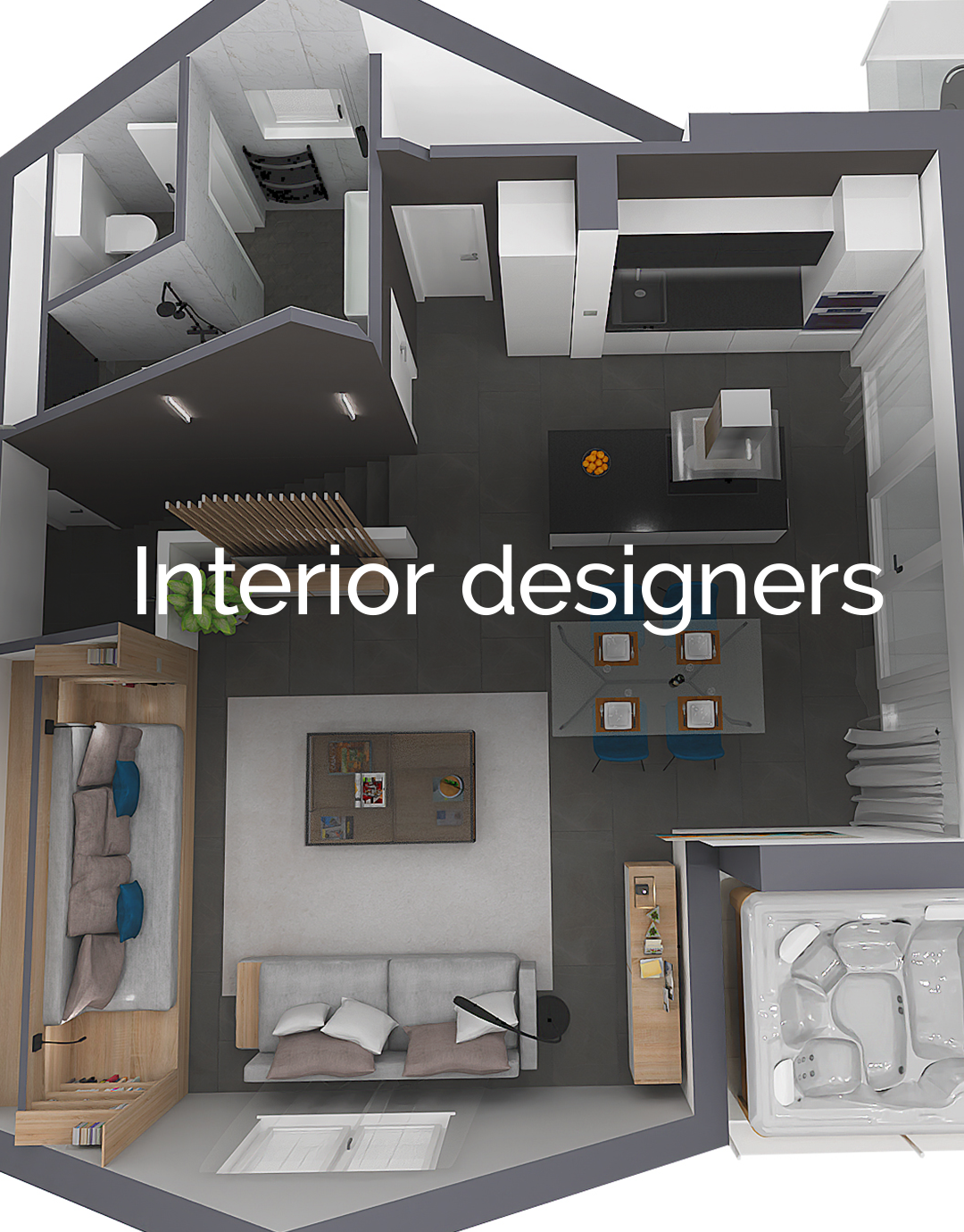

Why ARCHLine.XP?
ARCHLine.XP delivers powerful BIM capabilities with unmatched flexibility, easy learning curve, and seamless integration — enabling architects and interior designers to work smarter, faster, and more affordably.

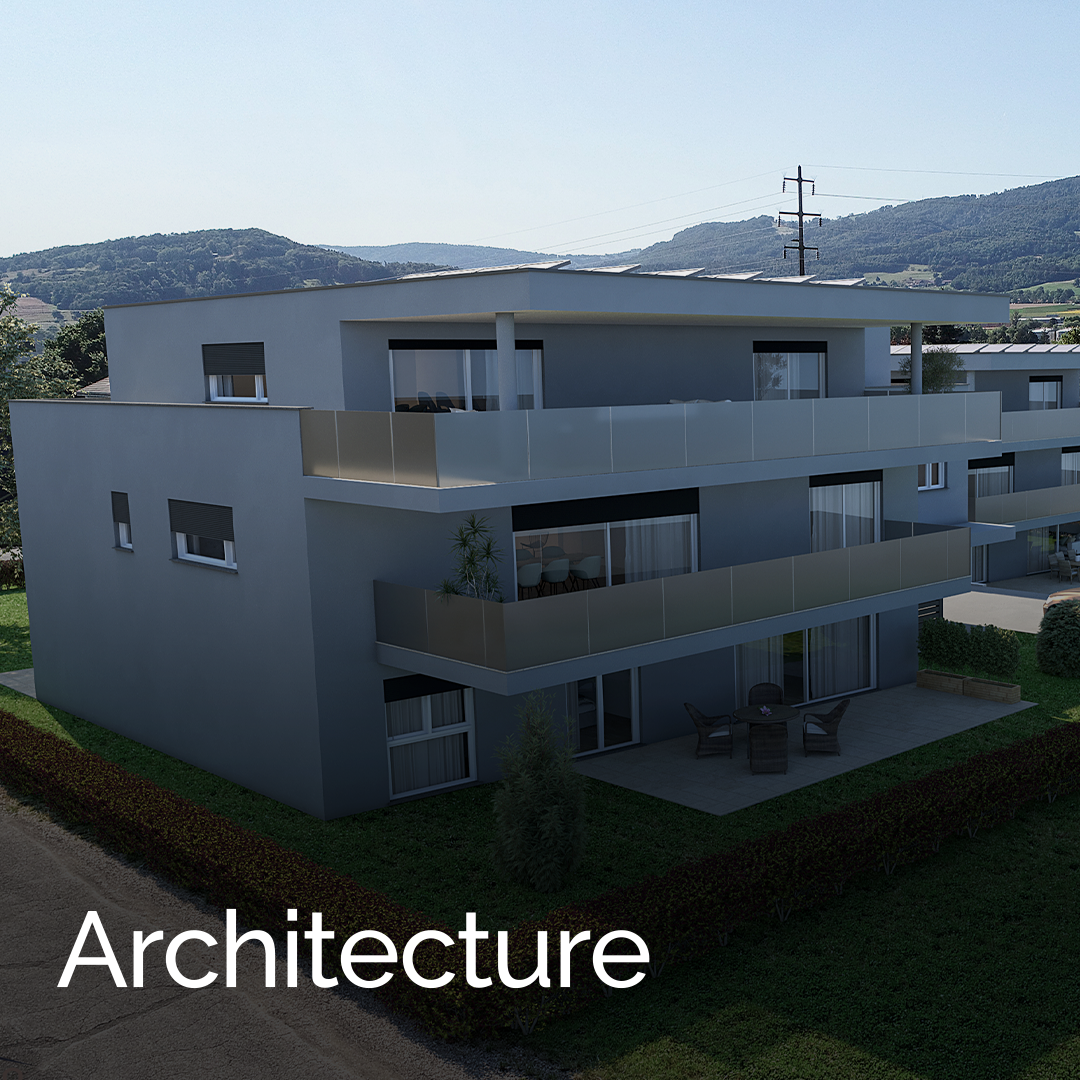
BIM in architectural design
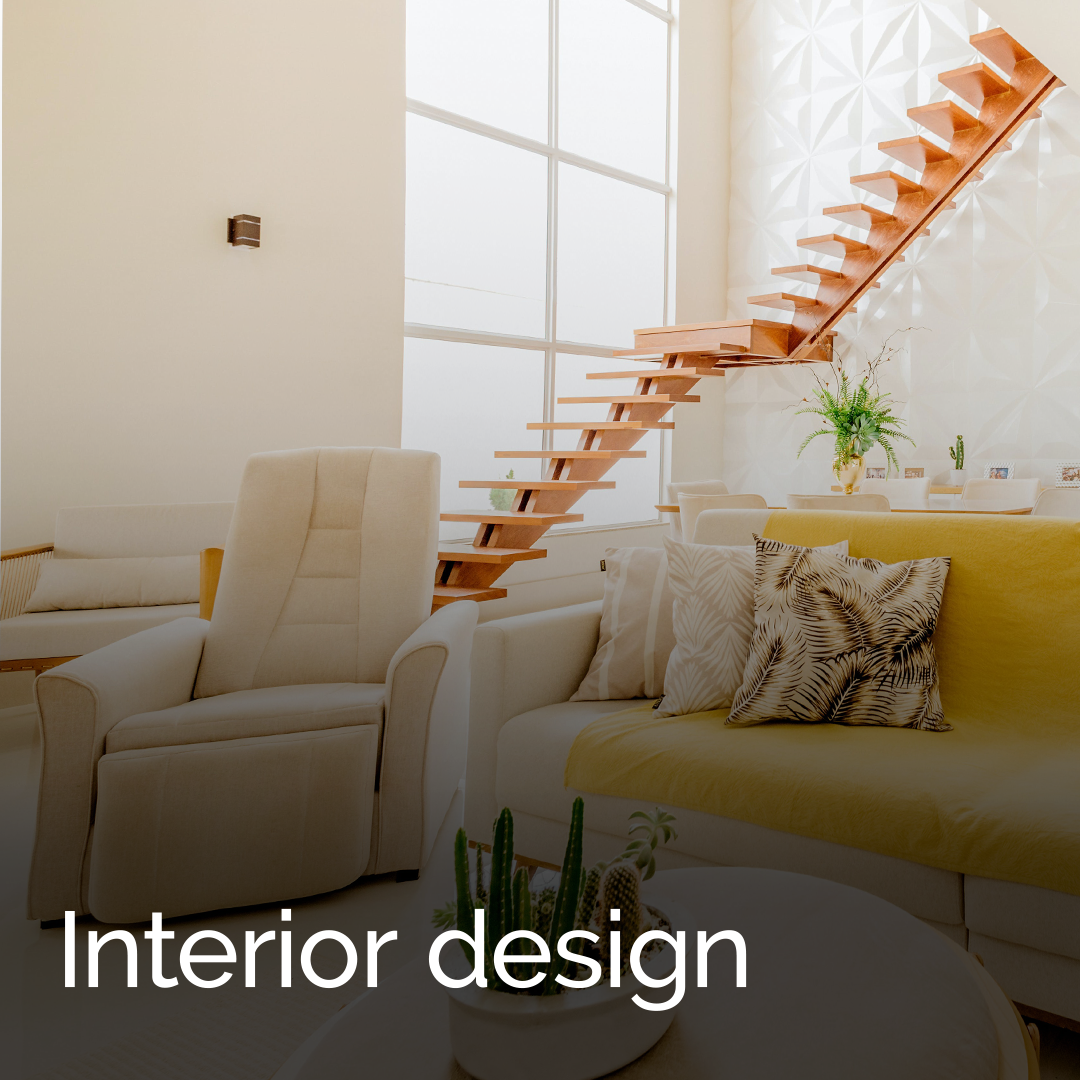
Interior design tools

Full documentation

Visual design
Gallery

"I wanted to use BIM so that I could evolve and meet an irreversible trend in architecture and engineering."
Roberto Krieger, Brazil
"It was an enormous surprise how intuitive the program proved to be, and we were amazed at the quality of the tutorial videos it was accompanied by."
Bogar Elek, Hungary
"ARCHLine.XP is an easy to learn, full-fledged CAD-BIM program, which has no shortcomings compared to its competitors."
Jakob Judis, Norway